Create and Verify Your Account
Create your account, confirm your email address and open the cloud dashboard. These steps use the English control panel; the button names below match that interface.
Before You Start
Use an email inbox you can open during registration. You will need the verification code sent there. Prepare a unique password; the form asks for at least eight characters with a mix of letters, numbers and symbols.
Fill In the Registration Form
- Open Create Account. If you already have an account, choose Sign in.
- Enter your First Name, Last Name and Email Address.
- Enter your phone number if you want to provide it. The phone field is optional.
- Enter your Password. Read the linked Terms of Service and the acceptance statement before submitting.
- Click Submit once. After a successful registration, the panel asks you to verify your email address.
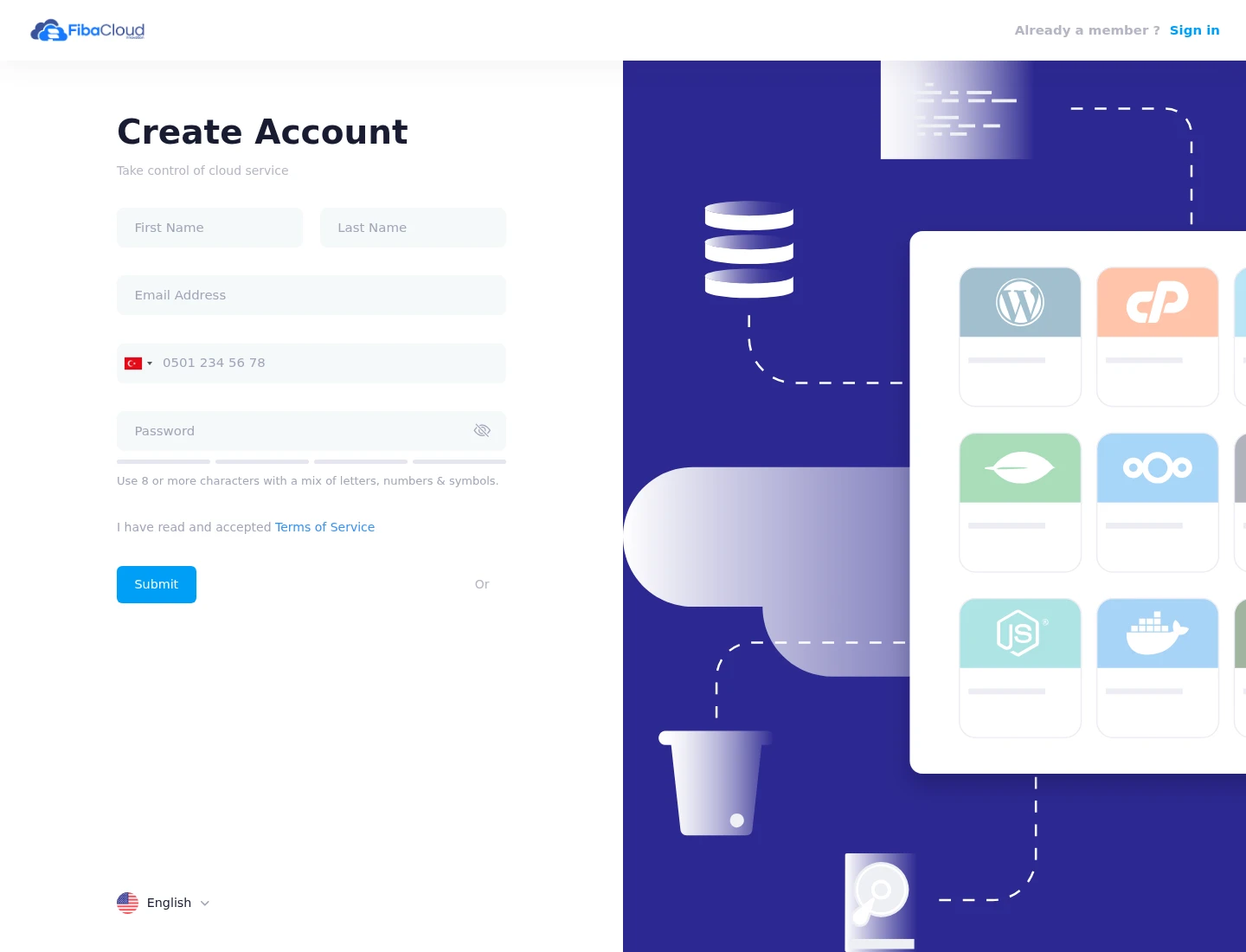
The real registration form with empty fields. The phone number shown is the form's placeholder.
Verify Your Email
- Open the email sent to the address you registered.
- Return to the panel's Email Verification screen or verification notice and enter the code from that email.
- Click Verify. When the code is accepted, the verification prompt closes and you can continue on the dashboard.
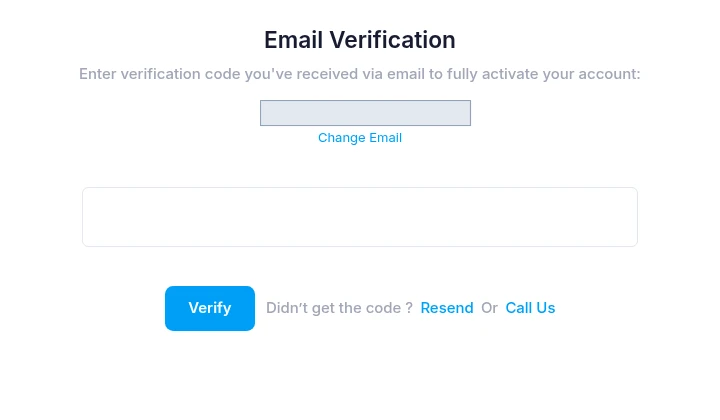
Cropped from the real verification screen. The grey block redacts the demonstration account's email address; the code field is empty.
If the Code Does Not Arrive
Check that you are reading the inbox for the address shown on the screen, including its spam folder. The screen provides Resend to request another code and Change Email if the address needs correcting. If you still cannot continue, use the Call Us contact option shown there.
Check Your First Dashboard
After verification, open the dashboard. Your Financial Status shows the account's credit and balance; Your Recent Services shows its services. Creating and verifying the account is a separate step from adding funds or creating a server.
Continue with Find Your Way Around the Dashboard to locate billing, account settings and the server creation entry points.
Next Steps
- Review the dashboard before selecting your first task.
- Review account security before using the account for ongoing work.
- Read the Instance creation guide before ordering a server.