Create and Restore an Instance Snapshot
A snapshot records a server state you can return to before a change. On 30 October 2026, we created and restored a snapshot of an actual Istanbul Shared 2 / Ubuntu 24.04 instance. We verified both the restored filesystem and a new SSH connection after starting the server again.
Before You Start
Open your service from Instances → Instances view and check its identity. Export any data you need to retain outside the server. Restoring a snapshot replaces the current state with the saved state; changes made afterward can be lost.
For an application or database, prepare a consistent backup and follow its shutdown or quiescing procedure before taking a snapshot. Our test used a fresh OS with no application or database running, so it does not establish database consistency for a running workload. Keep an independent backup: a snapshot within the same service is not an off-server backup.
Create the Snapshot
- Open the service's Snapshots tab. Review the available quota. Our Shared 2 service displayed 1 Snapshots(s) left; check the allowance of your own plan.
- Choose Create a new snapshot.
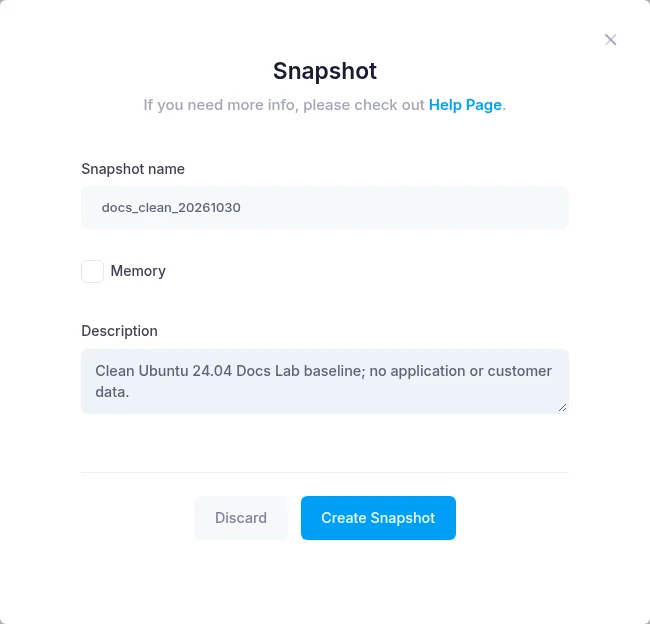
- Enter a descriptive Snapshot name. We used
docs_clean_20261030. Start with a letter and use letters, numbers or underscores; avoid spaces. - Add a Description explaining the state and purpose. We left Memory unchecked for this disk snapshot. Restoring RAM state was not tested.
- Press Create Snapshot once. The entry first appeared as Creating, then Current. Refresh the list until the operation is complete before relying on the snapshot.
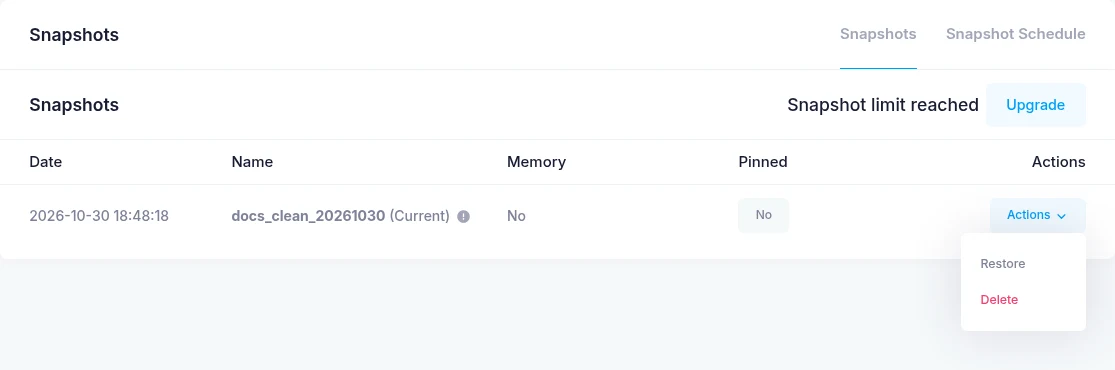
After creation our one available slot was consumed and the page showed Snapshot limit reached. That is a quota message, not evidence that the snapshot failed. Check the row and its status.
Restore the Saved State
Schedule an interruption and save any newer data you need before proceeding. Select the correct server and snapshot; do not use a restore operation simply to inspect its contents.
- In Snapshots, open Actions on the saved snapshot's row and select Restore.
- Read and confirm the restore prompt. The panel showed Server is performing task while the operation ran. Wait for completion; do not submit a second restore while it is busy.
- In our test the completed disk restore left the instance stopped. Return to its overview and choose Startup if it is off.
- Wait for the OS and network to become ready. In this test the console login screen appeared before SSH was reachable; SSH recovered a few minutes after startup. This is an observation from one test, not a guaranteed startup time.

Verify the Result
Use SSH to connect to the IP shown in Network Information. Verify the expected files and your services. If SSH is unavailable, check the power/task state and open the console before changing network or SSH configuration. A host-key warning needs investigation; do not bypass it automatically.
Our acceptance check confirmed:
- A disposable file created after the snapshot was absent after restoration.
- A saved inventory file present before the snapshot remained.
- The machine identity and pinned SSH host key matched, the boot identifier changed, and SSH key authentication succeeded again.
This verifies the disk restore and access for the tested image. It does not verify Memory restore, application backups, database recovery, scheduled snapshots or another operating system. Do not delete your independent backup until you have verified the restored workload.
Screenshots come from the actual create/restore test. Identifying service values are redacted. Powering an instance off does not end its billing.